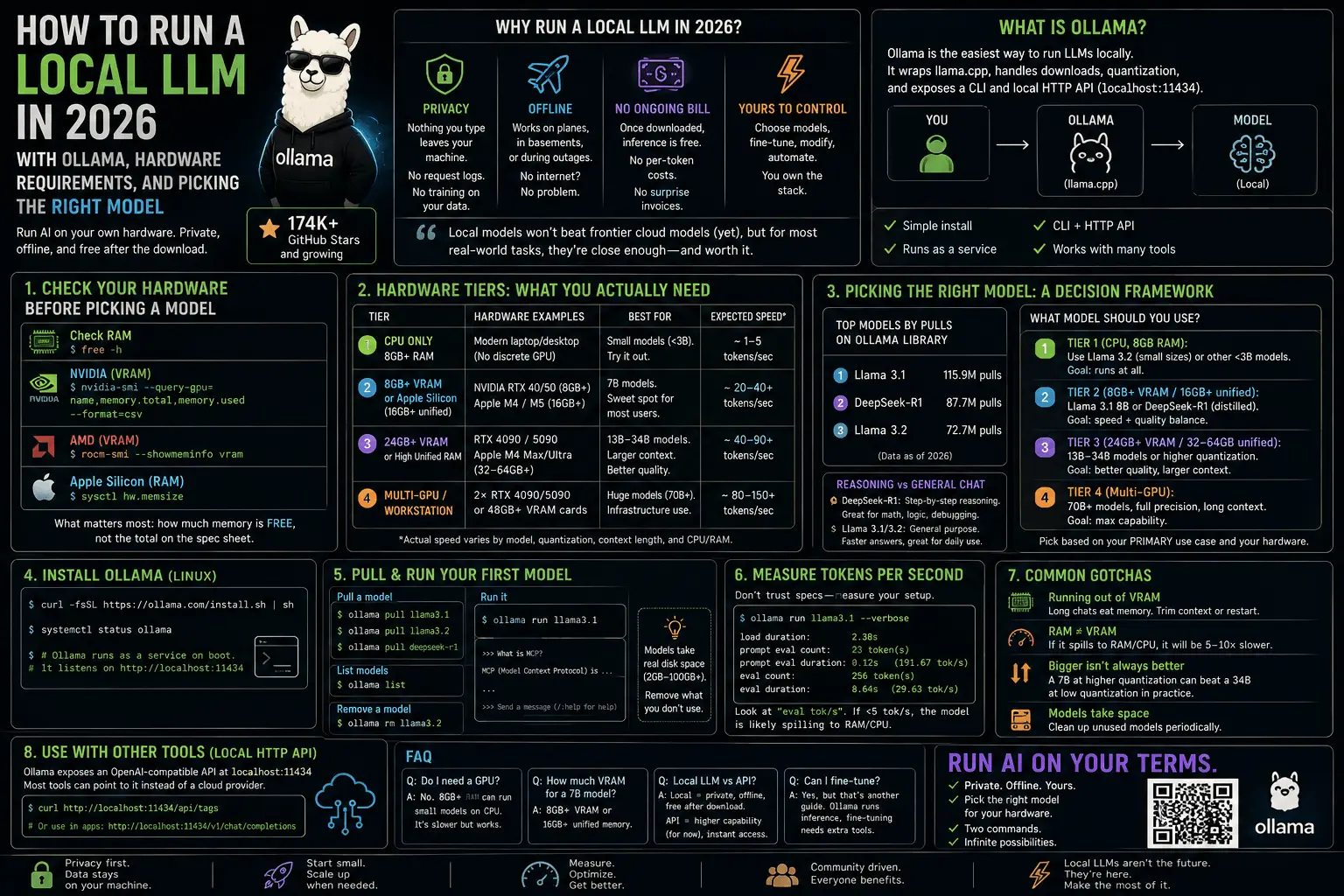
How to Run a Local LLM in 2026: Ollama, Hardware Requirements, and Picking the Right Model
Every time I open a new tab it’s another SaaS wrapper around someone else’s API key. At some point I got tired of paying per-token for things I could run on hardware already sitting on my desk. So I spent a weekend actually setting up local LLMs properly — not just running one toy demo, but figuring out what hardware you actually need, which models are worth pulling, and where the real bottlenecks are. This is the guide I wish I’d had before I started.
If you’ve been putting off running an LLM locally because it sounds like a research-lab project, it isn’t anymore. In 2026 it’s a two-command install and a pull. The harder part is knowing which model fits your machine — that’s what this post actually covers.
Why run a local LLM in 2026 instead of just using an API
Three reasons keep coming up, and they’re the same three reasons I landed on:
Privacy. Nothing you type leaves your machine. If you’re feeding an LLM internal docs, client data, personal journal entries, or anything else you wouldn’t paste into a random web form, that matters — no request logs sitting on someone else’s server, no terms-of-service question about whether your prompts get used for training.
Offline functionality. A local model works on a plane, in a basement server room with no signal, or during an outage on your ISP’s end. Cloud APIs go down; a model sitting on your own disk doesn’t care about anyone’s status page.
No ongoing bill. Once the model is downloaded, inference is free — no per-token metering, no surprise invoice because a script looped 200 times overnight. You pay once, in electricity and hardware you probably already own.
None of this means local models beat frontier cloud models on raw capability — they don’t, not yet, not for the hardest reasoning tasks. But for coding assistance, summarization, drafting, local RAG over your own documents, and general day-to-day use, a well-chosen local model is close enough that the tradeoff is worth it for a lot of people.
Ollama: the default way to run local LLMs
Ollama has become the de facto tool for this — it’s now past 174,000 GitHub stars, which tells you how far “download and run an LLM” has moved from research-lab territory into normal-developer territory. It wraps llama.cpp under the hood, handles model quantization and downloading for you, and exposes both a CLI and a local HTTP API on localhost:11434 that’s compatible with a lot of existing tooling.
Install it on Linux:
curl -fsSL https://ollama.com/install.sh | sh
That’s the entire install. It sets up a systemd service, so Ollama starts on boot and just sits there listening until you actually pull and run a model — no idle GPU usage, no background inference eating your battery.
Check it’s running:
systemctl status ollama
Checking your hardware before you pick a model
This is the step most tutorials skip, and it’s the one that actually determines whether your experience is “wow, this is fast” or “why is my laptop fan screaming and the output crawling out one word every two seconds.”
Check available RAM:
free -h
Check GPU and VRAM (NVIDIA):
nvidia-smi --query-gpu=name,memory.total,memory.used --format=csv
Check GPU and VRAM (AMD):
rocm-smi --showmeminfo vram
On Apple Silicon (macOS), there’s no separate VRAM to check — unified memory means the GPU shares system RAM directly, which is exactly why M-series Macs punch above their weight for this. Check total memory with:
sysctl hw.memsize
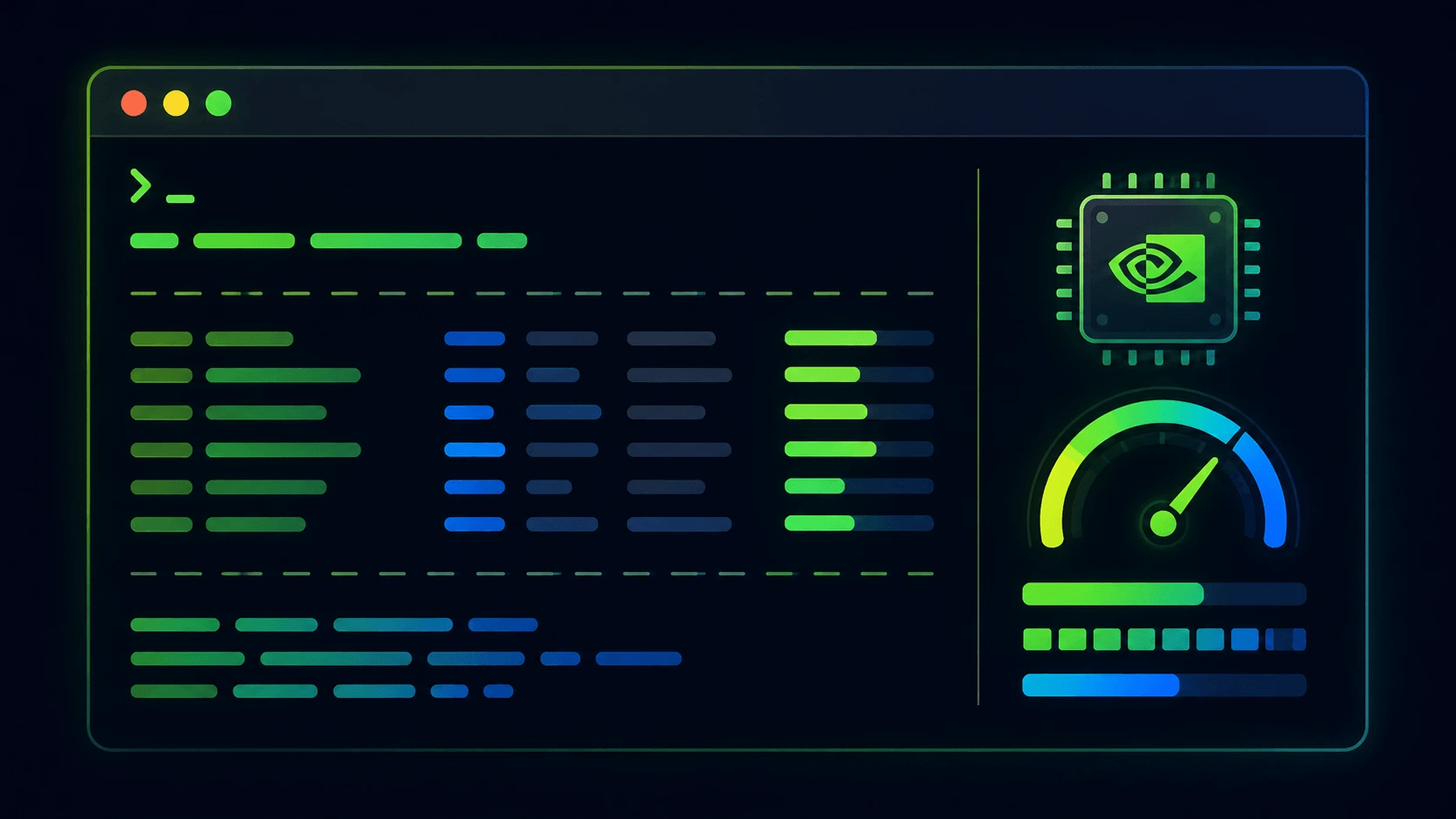
The number that matters most is how much memory (RAM or VRAM) is free, not raw specs on a spec sheet. A model needs to fit its weights plus a working buffer for context — if it doesn’t fit in VRAM, Ollama will spill over to system RAM or CPU, and that’s where the tenfold-slower experience comes from.
Hardware tiers: what you actually need
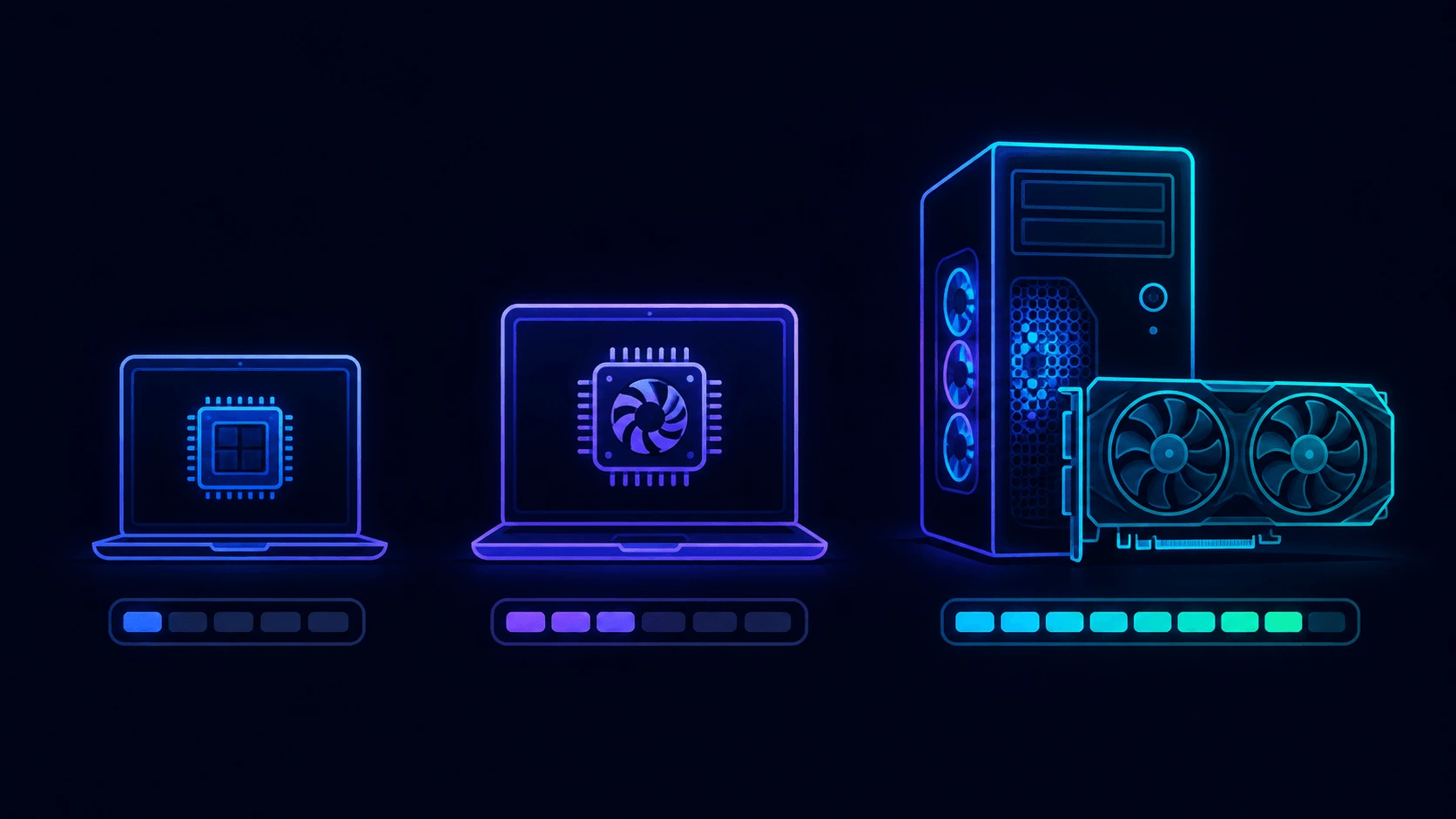
This is where advice from before roughly March 2026 already reads as outdated — the ecosystem moved fast. NVIDIA’s Blackwell RTX 50-series cards are the mainstream consumer GPU line now, and Apple’s M4 and M5 chips with their unified memory architecture are the dominant choice on the Mac side. Here’s how I’d bucket things as of today:
Tier 1 — CPU only, 8GB+ RAM
A modern laptop with 8GB or more of system RAM can run small models purely on CPU. It’s not fast, but it works — think a handful of tokens per second, fine for short Q&A or drafting where you’re not staring at the screen waiting on every token. This is the “I just want to try it” tier.
Tier 2 — 8GB+ VRAM GPU or Apple Silicon unified memory
This is the sweet spot for 7B-class models — the size where local LLMs stop feeling like a novelty and start feeling like a real tool. A single consumer GPU (an RTX 40-series or 50-series card with 8GB+ VRAM) or an Apple Silicon laptop (M4/M5, 16GB+ unified memory) can comfortably push 20+ tokens per second on a 7B model. That’s fast enough for interactive chat and even reasonably snappy code completion.
Tier 3 — 24GB+ VRAM or high-memory Apple Silicon
Once you’re running 13B–34B models, or want more headroom for larger context windows (long documents, big codebases), you want 24GB or more of VRAM, or a Mac with 32–64GB+ of unified memory. This tier is where local models start genuinely competing with mid-tier cloud models on quality.
Tier 4 — Multi-GPU or workstation-class hardware
Running the largest open models at reasonable speed and context length means multiple GPUs or a workstation card with 48GB+ VRAM. Most people reading this don’t need this tier — it’s for people running local inference as infrastructure, not as a personal assistant.
Picking the right model: a decision framework
Model choice should follow your hardware, not the other way around. Here’s how I actually decide, and the three models worth knowing about by pull count on the Ollama library — Llama 3.1 (115.9M pulls), DeepSeek-R1 (87.7M pulls), and Llama 3.2 (72.7M pulls) — which roughly tells you what the community has converged on as reliable defaults.
If you’re on Tier 1 (CPU, 8GB RAM): reach for Llama 3.2 in its smaller parameter sizes, or another compact model under ~3B parameters. You’re optimizing for “runs at all without swapping to disk,” not for peak reasoning quality.
If you’re on Tier 2 (8GB+ VRAM / Apple Silicon 16GB+): this is Llama 3.1 8B territory, or DeepSeek-R1’s distilled variants around the same size. Both fit comfortably, both give you real conversational speed, and DeepSeek-R1 specifically is worth trying if your use case leans toward step-by-step reasoning (math, logic, debugging) rather than general chat — it was built around explicit chain-of-thought reasoning traces.
If you’re on Tier 3 (24GB+ VRAM / 32-64GB unified memory): step up to the 13B-34B range, or run the smaller models at higher quantization (less compression, better quality) instead of the default. This is also where running two models side by side — one for chat, one for code — becomes practical without constantly swapping.
If you’re on Tier 4: you’re past the point where this post’s advice is the bottleneck — at that scale you’re choosing between full-precision weights of large open models and deciding how to split them across GPUs, which is a different, more infrastructure-flavored problem.
Reasoning-heavy tasks vs. general chat is the other axis worth thinking about independent of hardware. DeepSeek-R1’s whole design point is showing its reasoning steps before answering, which tends to help on math, logic puzzles, and multi-step debugging questions. Llama 3.1 and 3.2 are more general-purpose, faster to a final answer, and better tuned for everyday assistant-style use. If you only have room for one model, general-purpose usually wins on versatility; if you have room for two, running both covers more ground than either alone.
Pulling and running your first model
Once Ollama is installed, getting a model running is two commands.
ollama pull llama3.1
This downloads the model weights — expect anywhere from a couple gigabytes to tens of gigabytes depending on the size you pick. Ollama defaults to a sensibly quantized version so it fits typical consumer hardware without you having to think about quantization formats up front.
ollama run llama3.1
That drops you into an interactive chat prompt right in your terminal. Type a question, get a streamed response, token by token, running entirely on your own hardware.
To try a smaller model instead:
ollama pull llama3.2
ollama run llama3.2
Or the reasoning-focused option:
ollama pull deepseek-r1
ollama run deepseek-r1
List everything you’ve downloaded so far:
ollama list
Remove a model you’re no longer using (they take up real disk space):
ollama rm llama3.2
Measuring your actual tokens-per-second
Don’t just trust a spec sheet number — measure what your specific setup gets. Ollama logs generation stats you can check with --verbose:
ollama run llama3.1 --verbose
After a response, it prints eval rate (tokens/sec), load duration, and prompt processing time. Run the same prompt a couple of times to get a stable read — the first run after a fresh pull is usually slower because the model isn’t warm in memory yet.
If you’re consistently under 5 tokens/sec, that’s a strong signal the model doesn’t fit in VRAM and is spilling into system RAM or pure CPU — worth dropping to a smaller model or a more aggressively quantized version of the same one rather than fighting the hardware.
Common gotchas
Running out of VRAM mid-conversation. Long chats and large context windows eat memory beyond just the model weights. If a model that started fine slows to a crawl after a long back-and-forth, that’s context growth pushing you past what fits. Trim the conversation or start a fresh session.
Confusing RAM with VRAM. A GPU with 8GB VRAM and a system with 32GB RAM are not the same “8GB machine.” Ollama will use the GPU if the model fits there; if it doesn’t, it falls back to slower CPU/RAM inference, and it’s easy to not notice this happened until you check the tokens/sec.
Assuming bigger always means better for your use case. A 34B model at low quantization can perform worse in practice than a 7B model at higher quantization, once you factor in speed and the fact that you’ll actually wait for full responses instead of abandoning long generations halfway through.
Forgetting models take real disk space. These aren’t small downloads — running ollama list and pruning models you tried once and never use again is worth doing periodically.
FAQ
Do I need a GPU to run a local LLM? No. A modern laptop with 8GB+ RAM can run small models on CPU alone. It’s slower — a handful of tokens per second rather than 20+ — but functional for short queries and drafting where you’re not watching every token stream in real time.
How much VRAM do I need for a 7B model? 8GB of VRAM (or 16GB+ of Apple Silicon unified memory) comfortably runs a 7B-class model like Llama 3.1 8B, typically producing 20+ tokens per second on a single consumer GPU or Apple Silicon laptop.
Is DeepSeek-R1 better than Llama for local use? Neither is strictly better — they’re tuned differently. DeepSeek-R1 leans into explicit step-by-step reasoning, which helps on math and logic-heavy tasks. Llama 3.1/3.2 are more general-purpose and faster to a final answer for everyday chat and assistant use. Pick based on your primary use case, or run both if your hardware tier allows it.
Can I use Ollama with other tools, not just the CLI?
Yes — Ollama exposes a local HTTP API on localhost:11434 that’s compatible with a lot of existing OpenAI-style client code, so you can point editor plugins, scripts, or your own apps at it instead of typing into the terminal chat directly.
Is running a local LLM actually cheaper than an API? If you already own the hardware, yes — inference is free after the download. If you’d need to buy a GPU specifically for this, the math depends on how much you’d otherwise spend on API calls; for occasional light use, a cloud API is probably still cheaper than a hardware purchase.
Closing thought
I expected setting this up to be a weekend of fighting CUDA drivers and dependency hell. It wasn’t — Ollama really is a curl command and a couple of pull/run calls. The actual work is the hardware-to-model matching this post walks through, and once you’ve done that math once for your own machine, picking new models as they come out is just a pull away. Worth doing before your next API bill shows up.